As a manufacturer or distributor user, you can access the transfer cart at any time from the top-right corner. Click the cart icon to open it and see its contents.
The number displayed on the icon shows how many items are currently in the cart.
Scanning Items into the Cart
Open the cart and scan items directly into it.
Transferring Items
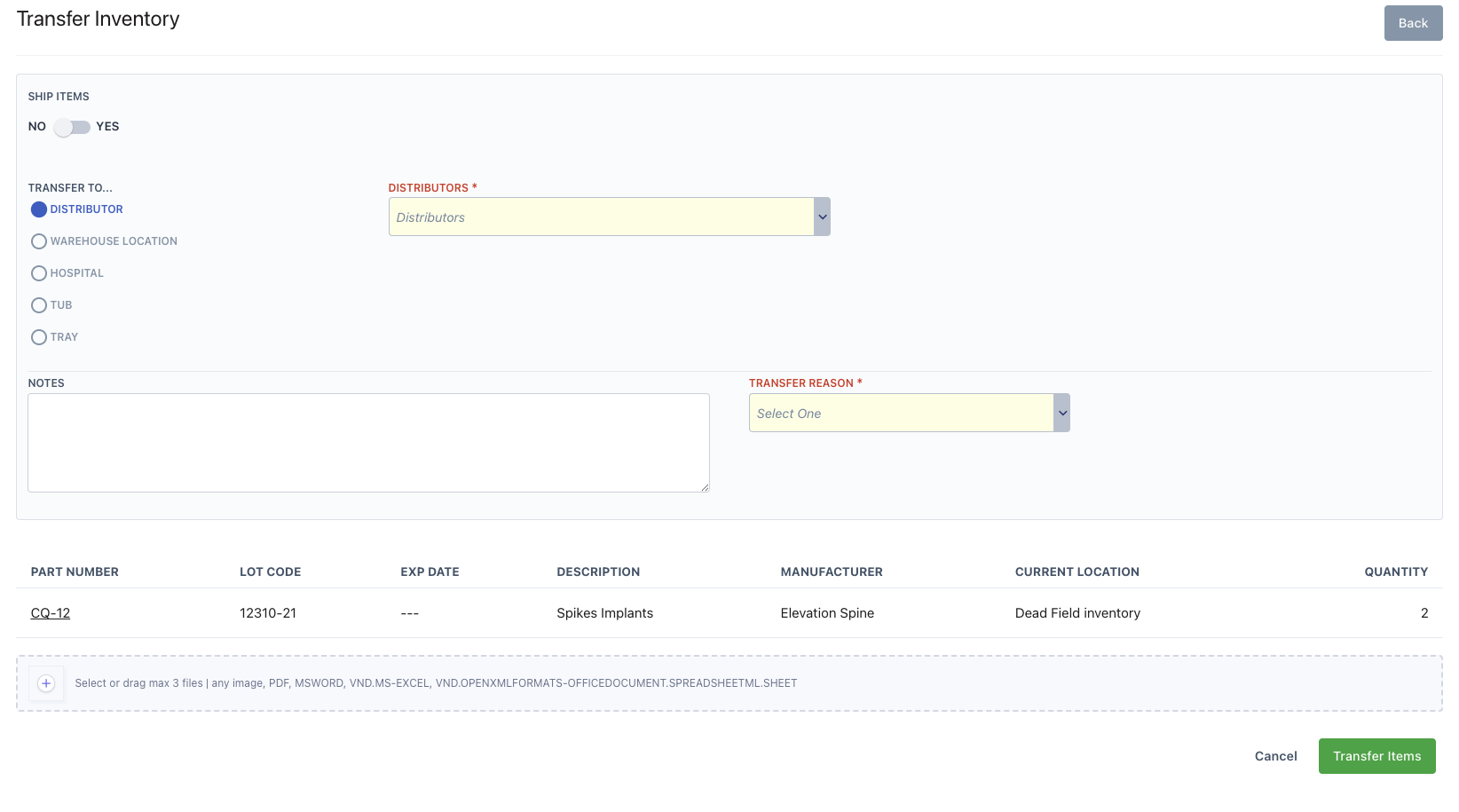
When transferring inventory, you can transfer it to a:
- Distributor
- Warehouse location
- Hospital
- Tub
- Tray
When transferring a tray or tub, you can transfer it to a:
- Distributor
- Warehouse location
- Hospital
Transferring and Shipping Items
When you ship an item, tray, or tub, you can only ship it to a:
- Distributor
- Warehouse location
- Hospital
You'll also need to add the address and shipping method.
Transfer Reasons
Every transfer requires a transfer reason. If you select Other, you'll be required to fill in the reason manually.
Uploading Documents When Transferring
Click the plus icon at the bottom of the page to add documents to the transfer. Uploaded documents will appear on the transfer history page.
Transfer History Page
To see all of the transfers that have taken place, go to the Transfer History page, found under Settings > Transfer History.
Comments
0 comments
Please sign in to leave a comment.